Key Takeaway: A CAM post-processor is the translator between the machine-independent toolpath your CAD/CAM software creates and the machine-specific G-code a particular CNC control understands — and choosing or configuring the wrong post-processor is one of the most common reasons a perfectly good CAM program crashes a machine or produces unusable code.
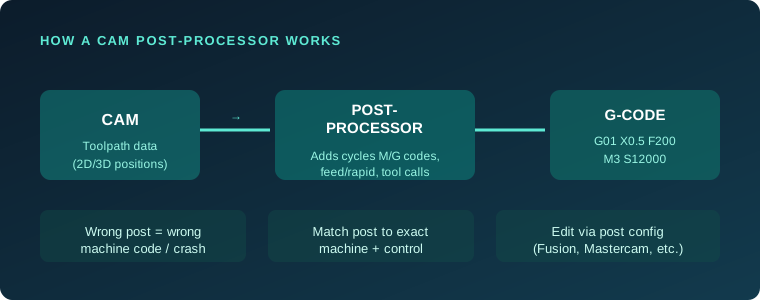
Table of Contents
- 1. What a Post-Processor Does
- 2. The Chain from Toolpath to Machine
- 3. Why It Must Match Your Machine
- 4. Post Files: Scripts, Configs and Parameters
- 5. Editing and Customizing a Post
- 6. Testing and Proving Out a New Post
- 7. FAQ
1. What a Post-Processor Does
Inside Fusion 360, Mastercam, SolidWorks CAM or any other CAM package, you define operations: a contour, a pocket, a drill cycle, a toolpath strategy. That programming produces geometry and motion data, but not yet a file a machine can run. The post-processor takes that data and converts it into the actual G-code and M-code for a specific CNC control — deciding how feed and speed words are formatted, how tool changes are handled, what tool-change position to use, how coolant is turned on, and which cycles the control supports.
In other words, the post-processor turns an idea into a program your machine can actually run. It is the last and arguably the most machine-specific link in the chain from CAD model to finished part.
2. The Chain from Toolpath to Machine
The flow is simple in principle. Your CAM software holds the toolpath as internal data — essentially a list of positions and feeds. During a post, a program (the post-processor) walks through that data and emits lines of G-code. Along the way it inserts the machine setup the operator expects: the correct file header, a tool table, canned cycle syntax, clearance plane moves, and the specific codes that the target control uses to start and stop the spindle and coolant.
Different controls differ in real ways. A Haas control, a Fanuc control and a Siemens control all speak variations of G-code, and they support different canned cycles and formatting. A post-processor tuned for one may produce code another control refuses or misinterprets — which is precisely why a post must be matched to the exact machine and control, not just any machine from the same brand.
3. Why It Must Match Your Machine
Using the wrong post-processor produces problems ranging from annoying to destructive. At best, the G-code simply fails to run and the program errors out at the control. At worst, a subtle mismatch — the wrong G-code for a movement mode, an incompatible tool-change position, or a missing coolant command — lets a machine move where you did not intend, which risks a crash, a broken tool or a scrapped part.
That is why the golden rule among professional CAM programmers is to select the post for your exact machine model and control before generating program files, then verify it on a first test piece. Never assume that a post from a similar machine will be correct.
4. Post Files: Scripts, Configs and Parameters
A modern post-processor is usually a small script or configuration file that CAM software executes. In Fusion 360 these are Post Processor Files (CPS extension), and they are actually JavaScript programs. Mastercam ships posts as text files with parameters and prompts. SolidWorks CAM uses posts that encode output formats and supported cycles as well. Regardless of the format, the post file contains the logic and the text templates that decide exactly how code lines are written.
Most CAM packages ship a library of posts for common machine-brand and control combinations, which is where operators should start. These factory posts are designed against a sample toolpath and cover the most common expectations of that machine, but they rarely cover every option a specific shop configures.
5. Editing and Customizing a Post
At some point a factory post almost always needs tweaking: your shop wants a different tool-change position, a different header with the program number, a mist-versus-flood default, or a specific retract behaviour. Editing a post is a programming task — in Fusion you edit the JavaScript CPS file, in Mastercam you adjust prompts and parameters — so it pays to know at least the basics of the platform’s post syntax.
The practical approach is to change one thing at a time and re-test, rather than editing a dozen settings at once. Keep a copy of the original post as a backup, comment your edits so the next programmer understands them, and keep the post under version control so a bad change can be rolled back. Vendors and resellers often provide custom posts, and many shops correctly budget for one rather than risk editing a production post by hand.
6. Testing and Proving Out a New Post
A new or edited post must be proved out before it runs on good material. Start by post-processing a simple representative toolpath and reading the G-code by hand to confirm the header, tool calls, spindle and coolant commands and retracts all look right. Then run the program on the machine with the toolpath simulator or a dry run, no spindle, so you can watch every move before any cutting happens.
Once the dry run is clean, cut a first-off part in scrap and inspect it before trusting the post for production. If you also simulate the toolpath in the CAM package using a simulation that models the full machine, you can catch collisions in software before they reach the machine at all — the cheapest possible time to find an error.
Frequently Asked Questions
What is a CAM post-processor?
A CAM post-processor converts the machine-independent toolpath your CAM software creates into the G-code and M-code a specific CNC control can run. It decides formatting, cycles, tool changes and machine setup codes.
Can one post-processor work for multiple machines?
Only if the machines share the same control and support the same cycles and formatting. In general you need a post matched to each machine-control combination.
Why does my CAM program produce code my machine won’t run?
Most commonly because the post-processor is not the right one for your machine and control, or a post needs customization to match your machine’s setup. Match the post to your exact machine and prove it out.
How do I edit a post-processor in Fusion 360?
Fusion 360 uses Post Processor Files (CPS, JavaScript). Open the post in Fusion’s editor, adjust the script and configuration parameters, then re-post and test. Keep a backup.
What is a dry run when proving out a post?
A dry run runs the program on the machine with the spindle off so you can watch all the moves and confirm there are no collisions or unexpected motions before cutting material.
Related Reading
Sources
- Autodesk Fusion 360 — Post Processors
- Mastercam — Post Processor Resources
- CNC Cookbook — Post-Processor Guides
Disclosure: This post contains affiliate links. If you buy through a link, we may earn a small commission at no extra cost to you. This helps keep justLast.in free for readers.