Key Takeaway: CNC feeds and speeds come down to one number — chip load. If your chip load is in the right range, you get clean chips, no burning, and longer bit life. For most hobby CNC routers cutting wood, start at 16,000-18,000 RPM with a 1/4-inch 2-flute bit, set feed rate to 1,500-2,000 mm/min, and depth of cut to 2-3 mm. You want chips, not dust. If you see dust or smoke, increase your feed rate — going slower is often the worst thing you can do.

Table of Contents
1. The Four Numbers That Matter
CNC feeds and speeds seem complicated, but they come down to exactly four numbers. Understand these, and you will never guess again. The four numbers are: spindle speed (RPM), feed rate, depth of cut (DOC), and stepover.
RPM is how fast your bit spins. A trim router like the Makita RT0701C runs between 10,000 and 30,000 RPM. A proper spindle with VFD gives you more precise control. Higher RPM means a smoother finish but more heat. Lower RPM means a rougher finish but cooler cuts. For most hobby CNC work in wood, 16,000-18,000 RPM is the sweet spot.
Feed rate is how fast the machine moves the bit through the material, measured in mm/min or inches per minute (IPM). Faster feed means each tooth takes a bigger bite — more aggressive cutting. Slower feed means each tooth takes a smaller bite — lighter cutting, but can cause heat buildup. The most common beginner mistake is running the feed rate too slow.
Depth of cut (DOC) determines how deep the bit plunges per pass. For CNC routers, DOC should not exceed 1x the bit diameter for softwoods and 0.5x the bit diameter for hardwoods. A 1/4-inch bit in pine should take no more than 6 mm in pine and 3 mm in maple. Going beyond these guidelines causes deflection, poor surface finish, and broken bits.
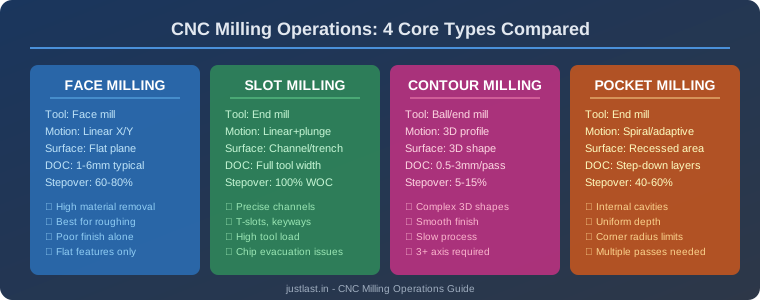
Stepover is how much each pass overlaps the previous one, expressed as a percentage of bit diameter. 40-50% stepover is typical for roughing (fast material removal). 10-20% stepover is for finishing passes (smooth surface).
2. Chip Load: The Secret Sauce
Chip load is the single most important concept in CNC feeds and speeds. It is the thickness of material each cutting edge (flute) removes per revolution. The formula is simple:
Chip Load = Feed Rate / (RPM x Number of Flutes)
If chip load is too small, the bit rubs instead of cutting. Friction generates heat, dulls the bit rapidly, and burns the material. This is the most common problem beginners face — and the fix is almost always to increase the feed rate, not decrease it.
If chip load is too large, the bit takes bites that are too big, causing chattering, rough cuts, deflection, and eventually a snapped bit.
When chip load is in the sweet spot, clean chips come off the bit, the surface is smooth, the bit stays cool, and the cut sounds consistent. You will know it when you hear it — a steady, smooth hum with no screaming or chattering.
Target chip loads by material: softwood 0.04-0.06 mm/tooth, hardwood 0.03-0.05 mm/tooth, MDF 0.03-0.05 mm/tooth, acrylic 0.05-0.08 mm/tooth.
3. Starting Settings Table
Here are ready-to-use starting settings for a 1/4-inch 2-flute carbide bit on a mid-range hobby CNC (Shapeoko, X-Carve, LongMill, or similar) with a trim router. Always verify with a test cut and adjust as needed.
| Material | RPM | Feed (mm/min) | DOC (mm) | Stepover | Bit Type |
|---|---|---|---|---|---|
| Softwood (Pine, Cedar) | 16,000 | 2,000 | 3.0 | 40% | 2-flute upcut |
| Hardwood (Oak, Maple) | 16,000 | 1,500 | 2.0 | 40% | 2-flute upcut |
| Plywood / MDF | 16,000 | 1,800 | 2.5 | 40% | Compression |
| Cast Acrylic | 16,000 | 1,200 | 2.0 | 40% | 1-flute O-flute |
| Aluminum (hobby CNC) | 12,000 | 600 | 0.5 | 40% | 1-flute upcut |
Important: These are starting points. Increase feed rate by 10% at a time until the cut sounds and looks right. For 1/8-inch bits, reduce DOC by half. For 1/2-inch bits, you can increase DOC by 50%.
4. Cutting Wood (Softwood, Hardwood, Plywood, MDF)
Softwood (Pine, Cedar, Fir)
Softwoods are the most forgiving material for CNC routers. Start at 16,000-18,000 RPM with a feed rate of 1,500-2,000 mm/min and DOC up to 3 mm for a 1/4-inch bit. Softwoods cut cleanly at high speeds. The main risk is fuzzy surfaces from the soft grain — sharp tooling and proper chip load minimize this.
Pine in particular can produce fuzzy edges regardless of feed settings. Solutions: use a downcut bit (pushes fibers into the surface), use a very sharp bit, or take a light finishing pass at a higher feed rate.
Hardwood (Oak, Maple, Cherry, Walnut)
Hardwoods are denser and generate more heat. Start at 16,000-18,000 RPM with a feed rate of 1,200-1,500 mm/min and DOC of 2 mm. Burn marks on maple and cherry are the classic sign of too-slow feed rate. Keep the chip load in the sweet spot and eliminate dwell points in your toolpath — corners where the machine decelerates are common problem spots.
Cherry and maple are dense hardwoods with low thermal conductivity, meaning heat concentrates at the cut surface. The fix is almost always to increase your feed rate — a higher chip load removes more material per tooth, carrying heat away in the chips instead of leaving it in the wood.
Plywood and MDF
Plywood machines well but the alternating grain layers make it prone to tearout on the bottom face. Use compression bits for through-cuts — they produce clean edges on both the top and bottom surfaces. Baltic birch plywood (many thin layers) is more forgiving than construction plywood (few thick layers).
MDF machines very cleanly because it has no grain direction. The main concern is dust — MDF dust is extremely fine and hazardous. Excellent dust collection is mandatory. MDF also dulls tools faster than solid wood because of the resin binders. Start at 16,000-18,000 RPM and 1,800 mm/min feed rate.
5. Cutting Acrylic and Plastics
Acrylic is one of the trickiest materials for hobby CNC routers because it melts instead of cutting when conditions are wrong. The key rules for acrylic are straightforward but non-negotiable:
- Use a single-flute bit. Two flutes don’t clear chips fast enough in acrylic, and the chips re-melt and weld to the bit. A single-flute O-flute bit designed for plastics gives each chip time and space to eject.
- Keep RPM lower than you think. Acrylic melts from heat, and high RPM = more friction = more heat. Run at 16,000 RPM or lower.
- Ensure proper chip evacuation. If chips are not clearing, they re-melt onto the cut surface, creating a frosted or cloudy finish.
- Start at 1,200 mm/min feed rate and adjust from there. If edges look frosted or melted, reduce RPM, increase feed rate, or both.
Cast acrylic is more forgiving than extruded acrylic because it has a higher melting temperature. For extruded acrylic, reduce both RPM and feed rate by 10-20% compared to cast acrylic settings.
6. Cutting Aluminum on a Hobby CNC
Cutting aluminum on a hobby CNC is possible but requires patience and conservative settings. The key differences from wood: much lower RPM, much shallower passes, and you must manage chip evacuation carefully.
Starting settings for aluminum on a hobby CNC: RPM 12,000, feed rate 600 mm/min, DOC 0.5 mm (for a 1/4-inch bit), stepover 40%. Use a single-flute upcut carbide bit designed for aluminum. Always use some form of lubrication — even WD-40 works in a pinch — to prevent aluminum from welding to the cutting edge.
If your machine is on the flexible side (like a 3018 or entry-level router), wait until you have experience with wood first. Cutting aluminum on a flexy machine is frustrating and will break bits. A more rigid machine (Shapeoko, OneFinity, or similar) can handle light aluminum work at conservative settings.
Climb milling is preferred for aluminum because it produces a cleaner finish. Keep chipload around 0.02-0.04 mm/tooth. Watch for chip welding — if you see aluminum sticking to the bit, your RPM is too high, feed is too slow, or you need more lubrication.
7. Troubleshooting Guide
| Problem | Cause | Solution |
|---|---|---|
| Burn marks on wood | Feed rate too slow, RPM too high, or dull bit | Increase feed rate by 10%; check bit sharpness; eliminate dwell in corners |
| Fine dust instead of chips | Chip load too low (rubbing) | Increase feed rate or reduce RPM |
| Chatter or vibration | Feed too aggressive or DOC too deep | Reduce DOC first; reduce feed rate if needed; check workholding |
| Rough surface finish | Dull bit, wrong bit type, or incorrect chip load | Check bit sharpness; try downcut bit for wood; verify chip load |
| Melting plastic | Chips not clearing or feed too slow | Switch to single-flute bit; increase feed rate; improve chip evacuation |
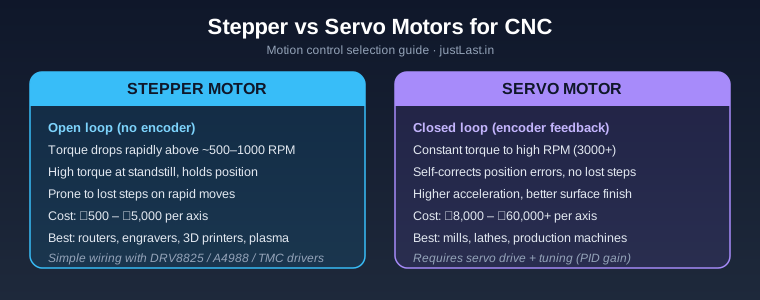
| Skipped steps | Feed too fast for machine or acceleration too high | Reduce feed rate or acceleration in your GRBL/controller settings |
| Fuzzy edges in wood | Soft grain or dull bit | Use downcut bit; take light finishing pass; sharpen or replace bit |
8. How to Calculate Feeds and Speeds
Here is the step-by-step process for calculating feeds and speeds from scratch:
- Find your target chip load from the recommended ranges above (e.g., 0.04 mm/tooth for softwood).
- Pick your RPM. For wood on a trim router, 18,000 RPM is a solid default. For plastics, try 16,000 RPM (lower heat).
- Calculate feed rate: Feed Rate = Chip Load x RPM x Number of Flutes. For example: 0.04 x 18,000 x 2 = 1,440 mm/min.
- Set your depth of cut. A safe starting rule: DOC should equal the bit diameter or less. For a 1/4-inch bit, start at 3 mm.
- Run a test cut in scrap. Listen to the sound, check the chips, look at the cut quality. Adjust from there.
Most hobby CNC controllers let you override the feed rate in real time (usually a percentage slider in your CAM software or controller UI). Use this. Start your cut and bump the feed rate up or down by 10% while watching and listening. This is how experienced CNC operators dial in settings, and it is the fastest way to learn.
Frequently Asked Questions
What RPM should I use for CNC routing wood?
16,000-18,000 RPM is the sweet spot for most wood cutting with a 1/4-inch bit on a hobby CNC. For softwoods, you can run at 18,000 RPM. For hardwoods prone to burning (maple, cherry), start at 16,000 RPM.
Why does my CNC burn wood instead of cutting it?
Burn marks are almost always caused by feed rate being too slow. The bit rubs instead of cutting, generating heat. Increase your feed rate by 10-20% and check that your bit is sharp. Also check for dwell points in your toolpath — corners and tight curves where the machine slows down are common burn locations.
How do I know if my chip load is correct?
Look at the chips. You want small, uniform chips — not fine dust and not large chunks. Listen to the cut. A smooth, consistent hum means the chip load is in the sweet spot. Screaming or squealing means the chip load is too low. Chattering means it is too high.
Can I cut aluminum with a hobby CNC router?
Yes, but with limitations. Use a single-flute carbide bit designed for aluminum, set RPM to 12,000, feed rate to 600 mm/min, and DOC to 0.5 mm or less. Use lubrication and take shallow passes. Desktop CNCs like the Shapeoko or OneFinity can handle light aluminum work. Small 3018 machines will struggle.
What is the difference between climb and conventional milling?
Climb milling (the cutter spinning with the feed direction) produces a cleaner finish and pushes less heat into the tool — best for finishing passes. Conventional milling (cutter against feed) starts each chip thin and produces more heat but is safer on machines with backlash.
How deep should I cut per pass?
For a 1/4-inch bit: 3 mm max in softwood, 2 mm in hardwood, 2.5 mm in MDF, 2 mm in acrylic, 0.5 mm in aluminum. Reduce depth proportionally for smaller bits.
What bit should I use for CNC routing?
2-flute upcut bits are the default for most wood cutting. Use downcut bits for clean top surfaces. Use compression bits for through-cuts in plywood. Use single-flute O-flute bits for acrylic and plastics. Use single-flute carbide bits for aluminum.
Related Reading
- CNC Router Motor Troubleshooting Guide 2026
- CNC Control Software Comparison 2026
- Stepper Motor Control with DRV8825
- ESP32 Smart Home Automation Guide 2026
Sources
- Understanding CNC Feeds and Speeds – Toolstoday
- CNC Feeds and Speeds Made Simple 2026 – CNC Dad
- CNC Feeds and Speeds for Beginners – Craftgineer
- CNC Router Speeds and Feeds Guide – ToolGrit
- CNC Feeds and Speeds Mastery – DesktopCNCForge
- Texas Instruments DRV8825 Datasheet
- Pololu DRV8825 Stepper Motor Driver Carrier
Disclosure: This post contains affiliate links. We may earn a small commission when you purchase through these links at no extra cost to you. As an Amazon Associate, we earn from qualifying purchases of CNC tooling and accessories.